
Playing Away From Home
How to configure OneCast to play your Xbox games over the internet while away from home.
With OneCast you can continue to play your Xbox games while you’re away from home, whenever your Mac is connected to the internet; for example at a friend’s place, in a coffee shop, or during your commute (this is possible over mobile data as well as regular Wi-Fi). However, in order to enjoy this functionality, the network that your Xbox is connected to (i.e. your home network) must be configured correctly.
Automatic Configuration
In most cases, this can be done automatically by selecting Configure for internet play from the console specific Options popup.
Important notes:
- After OneCast has been configured for internet play, your home network configuration may change from time to time. If this happens, you will need to re-run the configuration procedure.
- Your Xbox and Mac must be on the same local network when you run the configuration procedure. This means that you must run the configuration procedure before you attempt to connect while away from home.
- The automatic configuration will not work in all cases; certain routers and network configurations will prevent this from working.
- The connection quality can significantly degrade when connecting over the internet (depending on many external factors such as your internet service provider).
Manual Configuration
If the automatic configuration reports success, no further action is required. If you need to manually configure for internet play, follow these instructions:
Step 1: Find Your IP Addresses
On your Xbox, open Settings then navigate to General > Network Settings > Advanced settings.
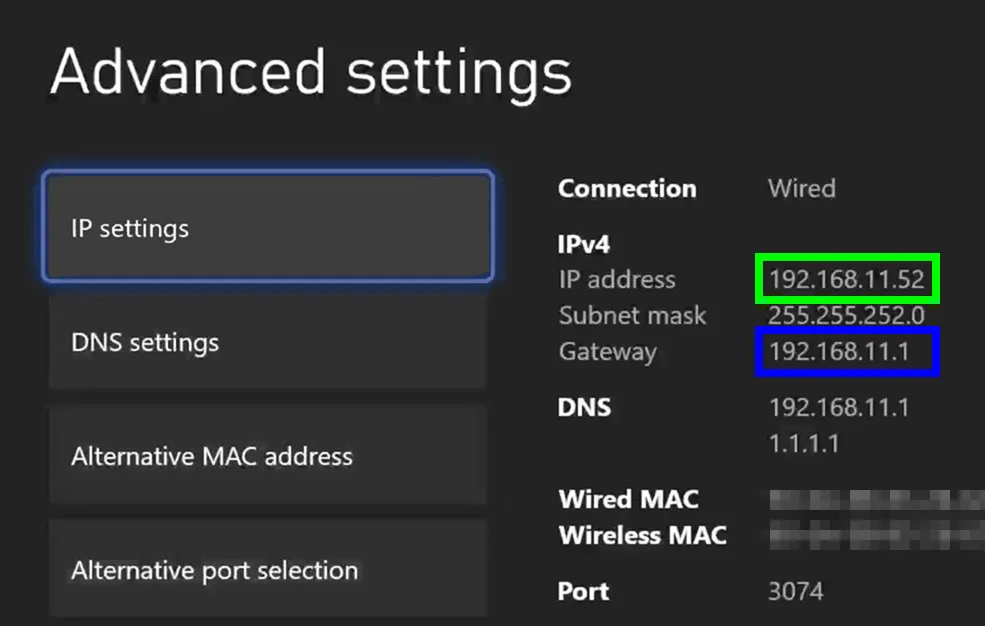
- The number next to “IP address” is the IP address of your Xbox console
- The number next to “Gateway” is the IP address of your router
Step 2: Access Your Router
- Open a web browser and enter your router’s IP address in the address bar
- Log in using the username and password (usually printed on your router)
Step 3: Configure Port Forwarding
Set up port forwarding to forward the following ports to your Xbox:
- UDP 9002
- TCP 9002
The exact process varies by router manufacturer. See this guide for help with various router brands.
Notes:
- Both ports use 9002, but with different protocols (UDP and TCP)
- Some routers allow specifying both protocols in a single mapping
- For the local IP address, use your Xbox console’s IP address
Step 4: Test the Configuration
After setting up port forwarding, re-run Configure for internet play from the console specific Options popup. It should now complete successfully.
Multiple Xbox Consoles
For multiple Xbox consoles on your home network, additional configuration is required. You’ll need separate port forwards for each console with different external ports:
| Console | IP Address | Internal Port | External Port |
|---|---|---|---|
| Xbox A | 192.168.1.50 | 9002 | 9002 |
| Xbox B | 192.168.1.51 | 9002 | 9003 |
| Xbox C | 192.168.1.52 | 9002 | 9004 |
After configuring port forwarding, set the External port override setting for each Xbox in OneCast to match the corresponding external port.